
Skip to content
Walla Walla Community College

Web Marketing and Communications

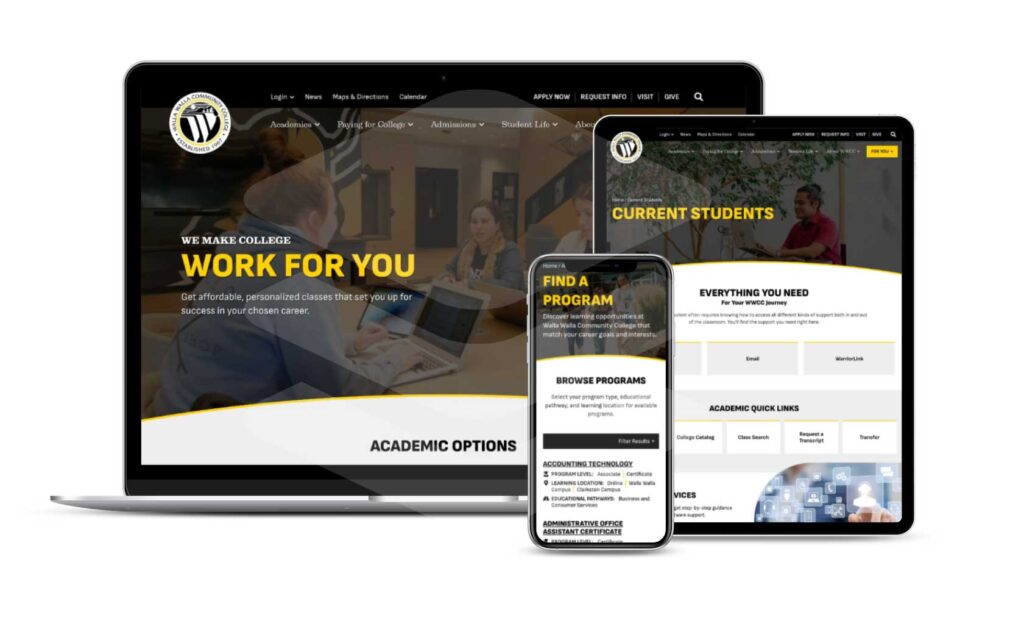
At Walla Walla Community College, the Marketing and Communications team oversees the entire web presence. From content and design to development and analytics, our team collaborates with departments across the college to keep all WWCC web pages on brand, accessible, and accurate. We strive for the best experience possible for our various user groups.

web-multiple-devices

Typical Projects and Timelines

  • Web edits | 1 week
  • New web pages | 2-4 weeks
  • Web page redesigns |  4-6 weeks
  • Google Analytics reports  | 1 week
  • Vanity URLs and redirects | 1 week

Get Started

To request changes to the website, please submit a Web Request. Be sure to include detailed information about the context and purpose of your request, along with the content you’d like updated.

FAQ

Helpful Tips for Updating Existing Pages

Capturing Screenshots

To capture a screenshot, you can use the Snipping Tool or follow these steps:

  • Windows: Press ‘PrtSc’ on your keyboard or use ‘Windows key’ + ‘Shift’ + ‘S’ to take a screenshot.
  • Mac: Press ‘Command’ + ‘Shift’ + ‘3’ to capture the screen.
  • If you need the entire page visible, press ‘Shift’ + the minus/dash key to zoom out and capture the whole page.

After taking a screenshot:

  • Use your preferred tool (Paint, Word, PowerPoint, Adobe products, etc.) to mark the changes.
  • Strike through any text that should be removed.
  • Highlight or change the text color to show any additions or edits.
  • Be sure to include the URL links for the pages you’re referencing.

Editing Text on Pages

When providing updated text:

  • Include the exact text you wish to add or modify.
  • If there are similar sections on the page, specify which one you’re referring to.
  • Highlight the new additions and strike through any text you want removed or replaced.
  • Refer to examples for common Editorial Style Guide changes.

Updating Images or Files

  • Attach the new image you’d like to use instead of inserting it into a Word document.
  • If you’re unsure if the image is appropriate, submit it, and the Web Team will assist with resizing or finding a suitable alternative.
  • Clearly indicate which existing image or file needs to be replaced to ensure accuracy.

By following these tips, you’ll ensure a smooth and effective page update process.